Logging In and Out
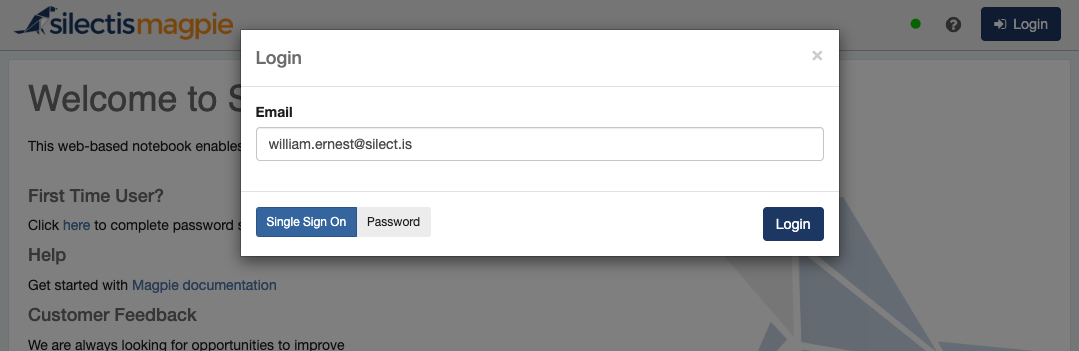
To log into magpie, enter the Magpie URL provided to you. This URL will typically have the following format "https://org-name.silect.is" where org-nameis the name of your organization. Once Magpie loads, you will see a "Login" button in the upper right corner of the screen. Click on the "Login" button to open the login dialog. There may be two options for logging in presented to you in a toggle, Single Sign On or Password. Just toggle the switch to appropriate login method and continue.
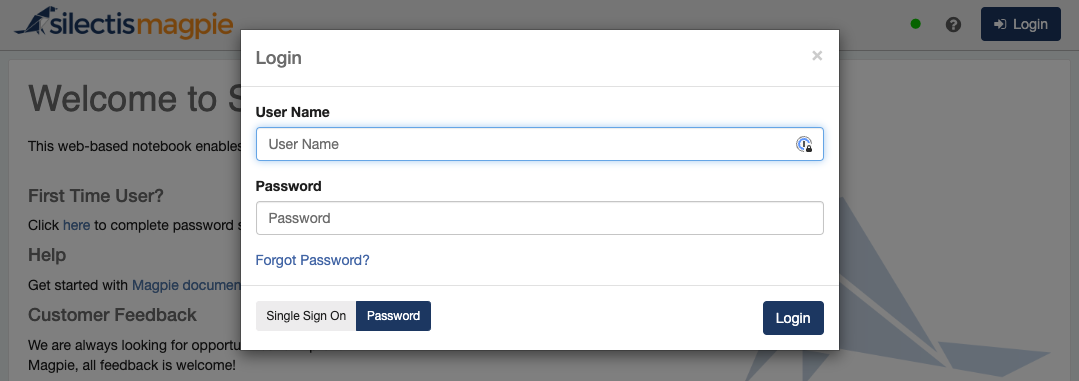
Logging In Using a Username and Password
Your username should be your email address. If you have already set your password, enter it and click "Login" to log in.
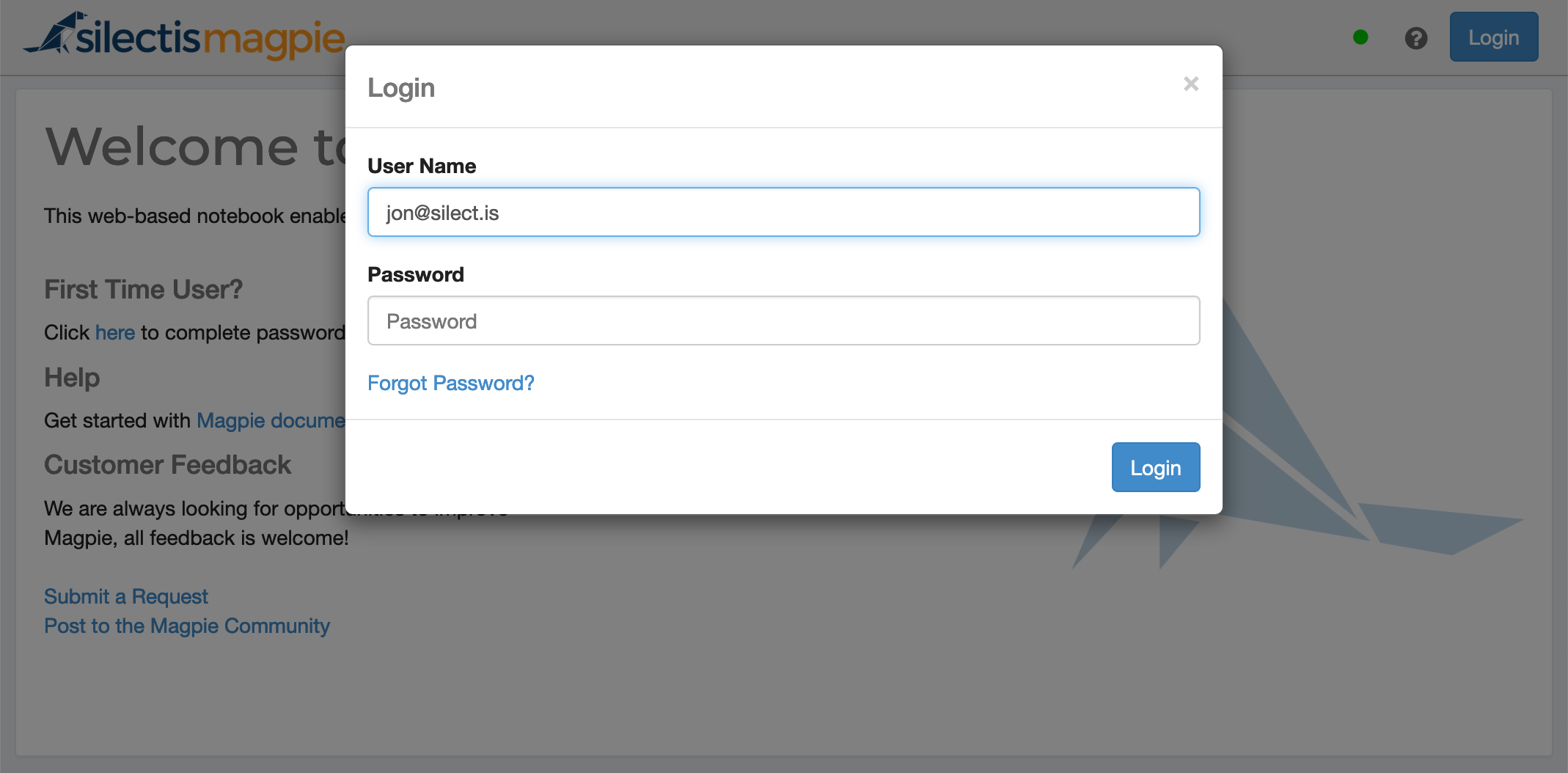
If you have not yet set your password or you have forgotten it, click "Forgot Password" to start the password reset process. This will open a "Reset Password" dialog. Accounts are locked out after 10 consecutive incorrect passwords are entered and must be re-enabled by an administrator.
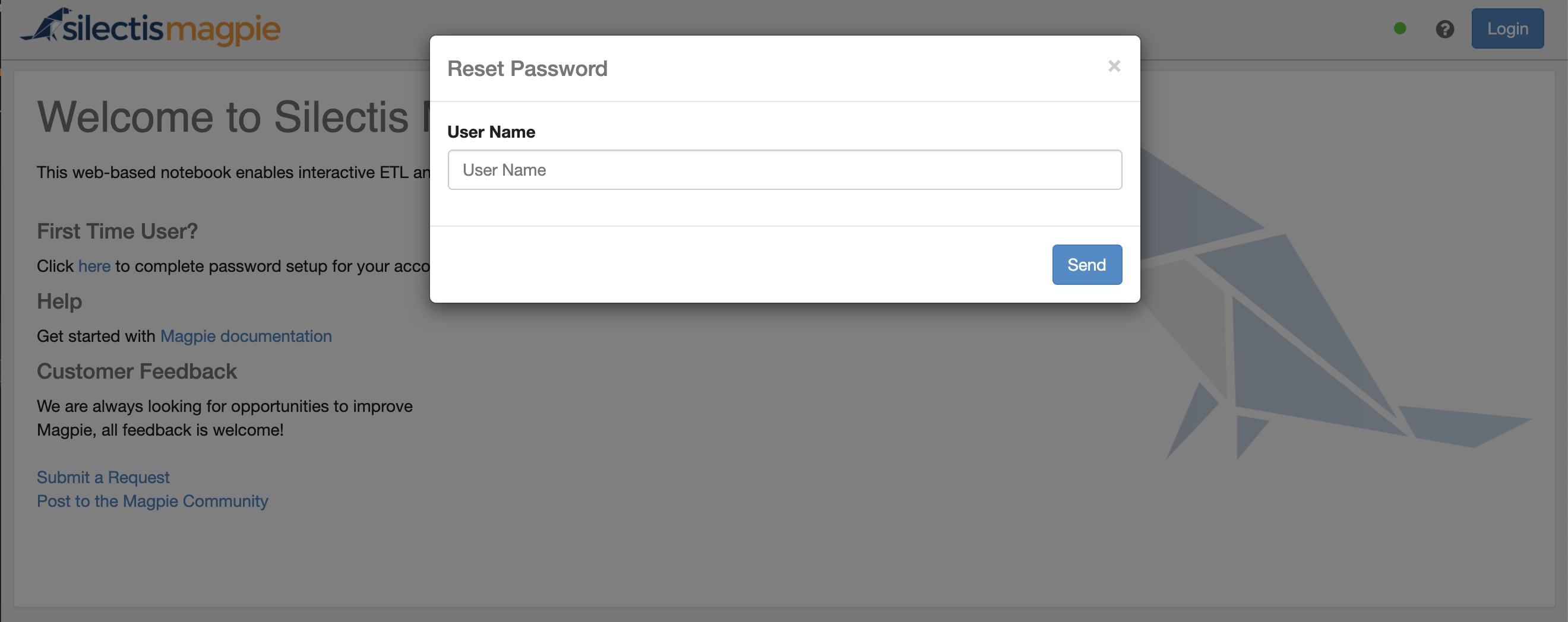
After entering your username and clicking “Send” you should receive an email containing a temporary password reset link. Follow the instructions in the email to navigate to the “Password Reset” page. If you do not receive an email, contact your organization’s Magpie administrator for help. The figure below shows the password reset page.
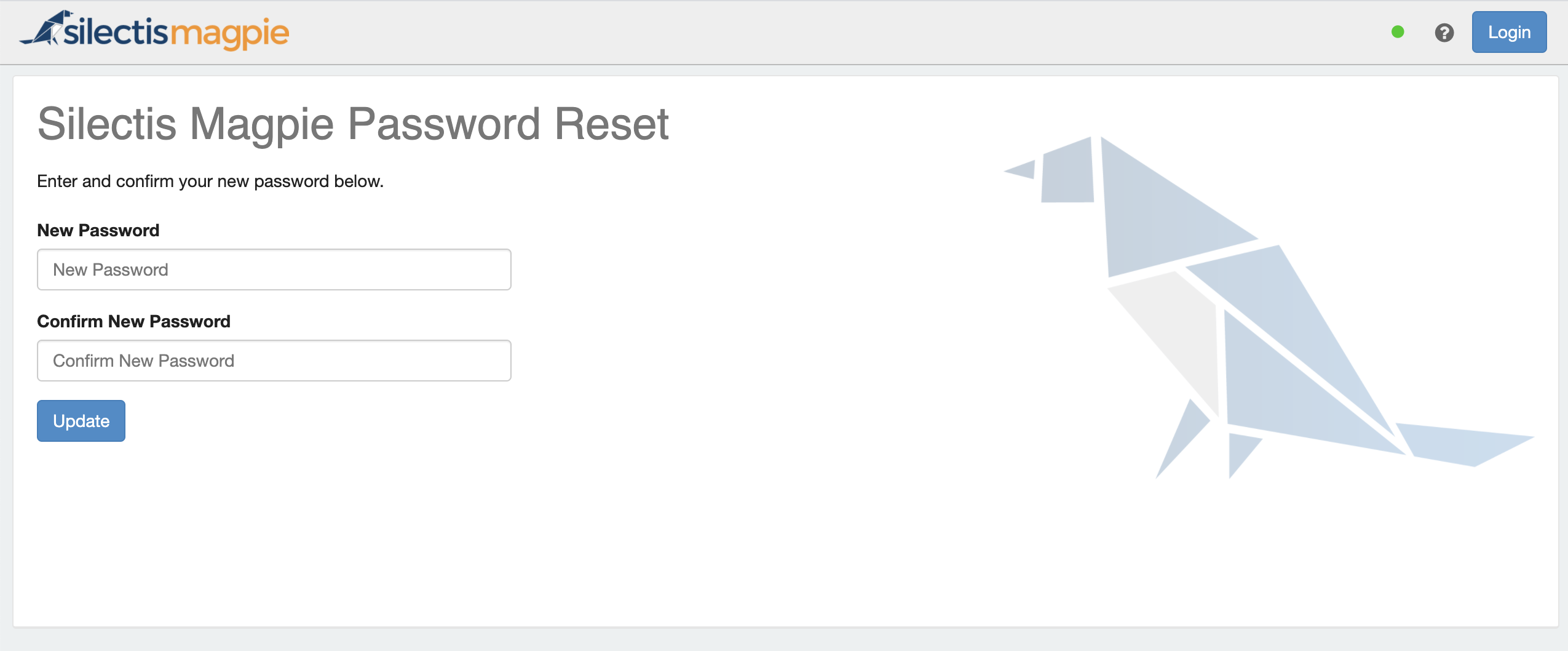
After entering and confirming a valid new password, you can log into your Magpie account.
Logging In Using Single Sign On
If single sign on is available for your organization, all you need to do to login in is enter your email and press the Login button. This will redirect you to your organizations identity provider, where you will login and be then redirected back to Magpie.
If single sign on is not available to your organization and you would like to enable this feature, please reach out to your Silectis representative.
Logging Out
Once you have completed your work, you can log out by clicking on your username to access the drop-down menu. Click the log out button to log out.
