Downloading Files onto Clusters
Small files may be uploaded to the Magpie MDR and then placed onto Magpie clusters when they start.
Use this to put configuration files, credentials, and dependencies on a cluster without embedding them in the cluster's bootstrap script. A bootstrap script is part of the cluster's own definition, so anyone who can read the cluster can read what is written into it, and changing what lands on the cluster means editing the cluster itself. An uploaded file is a separate object with its own permissions, attached to a cluster by reference.
Because file and cluster are separate objects, associating them requires permission on both — use on the file and use on the cluster. Access to a file can therefore be granted to the people who need to manage it without granting access to every cluster it is placed on, and revoked without touching the cluster definition.
Typical uses:
- Configuration — drop a config file into place on the cluster, or append settings to one that already exists.
- Dependencies — install a Python wheel that notebook scripts need, so a cluster comes up ready to use.
Step 1: Uploading to the MDR
To start the process of uploading a file to the MDR, run the create file command to create one with its JSON spec. This command will prompt you to select a file from your local machine to upload to the Magpie MDR. Large files are discouraged and there is a maximum limit of 100 MB.
See the example below for the upload flow:
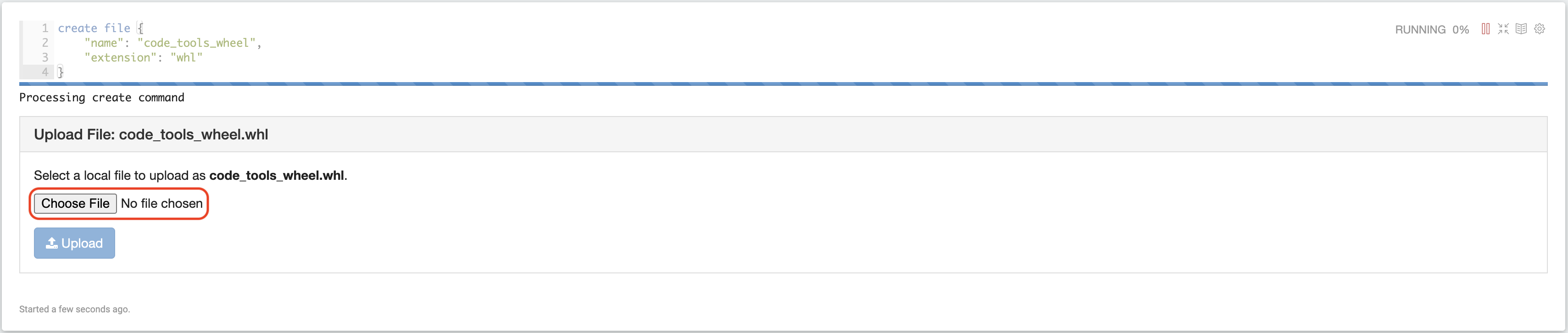
After running the command, the paragraph output will display this form for you to select your file. A file can have a convenient MDR handle name (such as “code_tools_wheel”) if its actual name is excessively long; Magpie will also store the original file name.
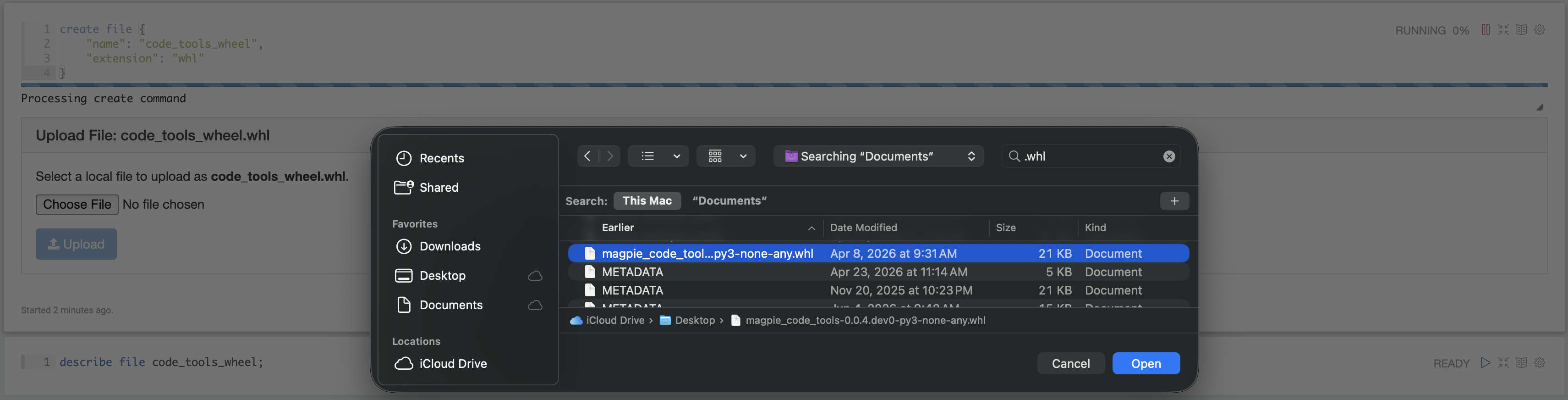
Clicking the “Choose File” button opens a file browser modal. Select and upload the correct file from your local filesystem.
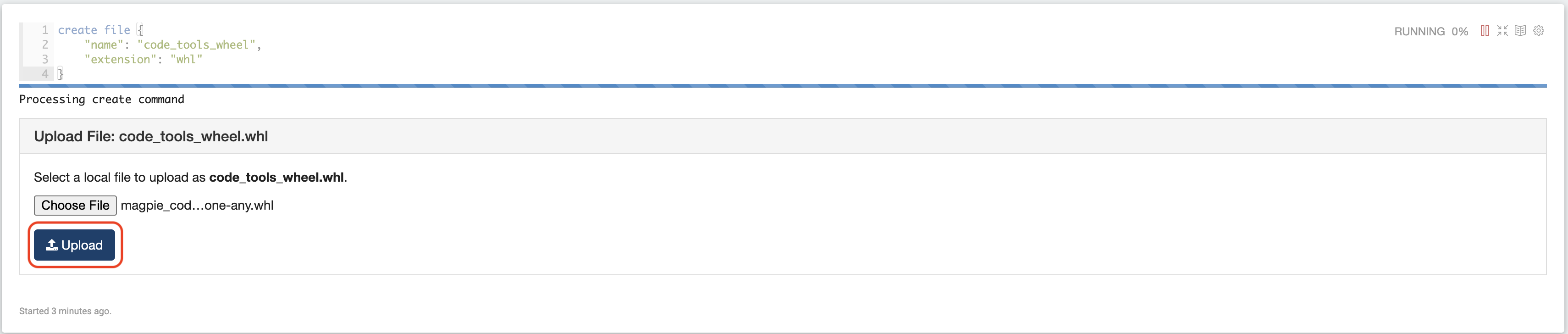
After selecting your file in the browser modal, you should see the blue Upload button become active. Click the Upload button to save the file to the Magpie MDR, and refer to it as a metadata object under its saved name (in this example, “code_tools_wheel”)
Step 2: Associating with Magpie Cluster
After uploading a file, it may be associated with any number of clusters in your organization. Use the association command and JSON spec to specify the clusters onto which the files should be downloaded, and which of two actions to take after download:
pip_install(will attempt to install the file via pip - only works with wheel files)place(does not take any action after download)append(appends the file content to an existing file atdestinationDiror creates if missing)
See the example below for the association flow with pip_install and append actions:

This example associated the “code_tools_wheel” file with the cluster test_cluster, and will pip install it during bootstrapping. Note that “code_tools_wheel” is an MDR handle only and not the downloaded file name - files will be downloaded onto clusters with the same name they had when uploaded. Do not confuse the convenient MDR handle with a rename.
Now that the file has been associated with the cluster, it will be downloaded and made available under its original file name the next time the cluster starts!
To disassociate a file from one cluster, but keep it in the MDR, use the disassociation command. To drop a file and all of its associations, use the drop command.